
To configure a PatrolPC with Mark43 you will need:
- IMEI & SIM ICCID
- Mark43 FR installer, DIS installer, N-Able installer, Brother PJ723 printer driver, plus CJIS (cjissso.chs.state.ma.us/sso/login.action) & Bluevoice (app.bluevoice.io) URLs
- Cruiser number/car name
Most of these steps are not in any particular order, this is just how I do it.
It is beneficial to call Verizon public safety support at 1-800-525-0481 before you begin this process to get the static IP and cellular configured. Provide the static IP to MA DCJIS helpdesk.
Step 1:
Rename the PC to the car name or something appropriate to the use case for easy identification in Mark43 DeX. Restart.
- Rename
- installed the PD Nable agent set to pro lic.
Step 2:
Use Nable to transfer all files need to setup the MDT to the C:\temp folder.
- Mark34 FR newest version MSI S:\Dept_PD\Mark43\Mark43 Software-Apps\Mark43 2026 APPS\Mark43+First+Responder+Setup+2.3.3.msi
- 7zip
- Adobe reader
- PD wall paper IT share: S:\Dept_PD\IT Car stuff - MDT\MDT-wallpaper.png
- Mark43DIS S:\Dept_PD\Mark43\Mark43 Software-Apps\LIVE - COM7 - Mark43DesktopIntegrationService.msi
- MDT desktop shortcuts - CJIS SSO, BLUEvoice
- Move the short cuts to the Public desktop
- CJIS SSO Cert. S:\Dept_PD\CJIS Certificates.
- need to add instructions to add the CERT
- install Adobe reader, 7 zip, Chrome web browser.
Step 3:
Install Mark43 First responder and Mark43DIS using the flash drive under the default account.
- Mark43 FR install Use Nable >>the MDT >> tools > Command > enter
- msiexec /i "c:\temp\Mark43+First+Responder+Setup+2.3.3.msi"
- on the MDT open mark43 FR and enter the url: Falmouthpd-ma then login.
- Mark43 FR install Use Nable >>the MDT >> tools > Command > enter
- msiexec /i "c:\temp\LIVE - COM7 - Mark43DesktopIntegrationService.msi"
- if you have and error when DIS open go to Step 7
- reboot may be required
- after restarting, make sure DIS pops up with a notification "Mark43 DIS successfully installed"
Step 4:
Install both Printer driver. Restart.
Step 5:
Populate the desktop with links to CJIS SSO and Bluevoice
Provided you already added the static IP, test CJIS connection
Step 6:
Log in to Mark43 FR on the MDT. It will not work properly, but you need to register in the desktop config list with your new hostname.
Step 7:
On Mark43 RMS, navigate to Admin Settings > Desktop Configs and select the hostname of this crusier. Set the appropriate COM port. To determine the appropriate COM port setting, it will usually be labeled with NMEA somewhere in the name in device manager or U-Blox GNSS. Some devices have both and I have better luck with the NMEA.
If you are having trouble with this, use PuTTY to read the data from this port and if all the data is blank/shows the same thing over and over again when you walk around outdoors you have the wrong port. Cellular needs to be set up for any of this to work.
Step 8:
Back to Admin Settings in Mark43 CAD, go to DeX Devices. Perform a search for the hostname to ensure it is not already there, if it is not, add it with the hostname twice and MA0010778 for the ORI and Mnemonic.
Step 9:
Deploy the MDT in a car, and have an officer test:
- Mark43 SSO
- Mark43 DeX
- Cjis SSO
The most common problem you will encounter at this point is DIS error. If you receive a DIS error, you need to go back to step 7 and ensure the GNSS/NMEA port is working. If you have both options, choose the other one and try again.
Step 9:
???? Move to Step 1 Open lusrmgr.msc. Set the password & enable administrator account.
Step 10:
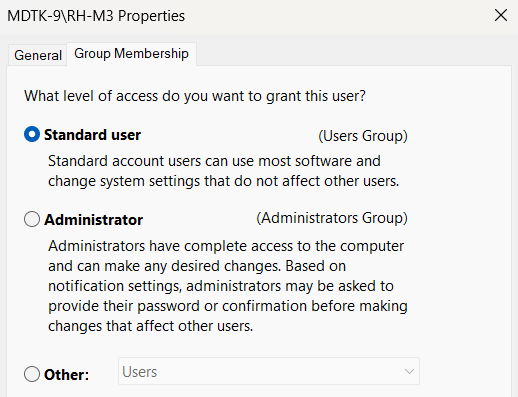
Change the group membership for the local user from "Administrator" to "Standard user"
- netplwiz tool the user account windows will open, select the user then click Properties
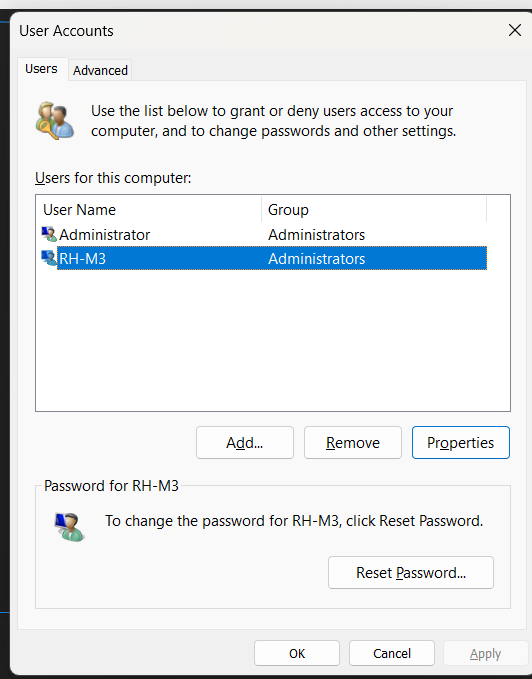 Select TAG Group Membership ann change to Standard users.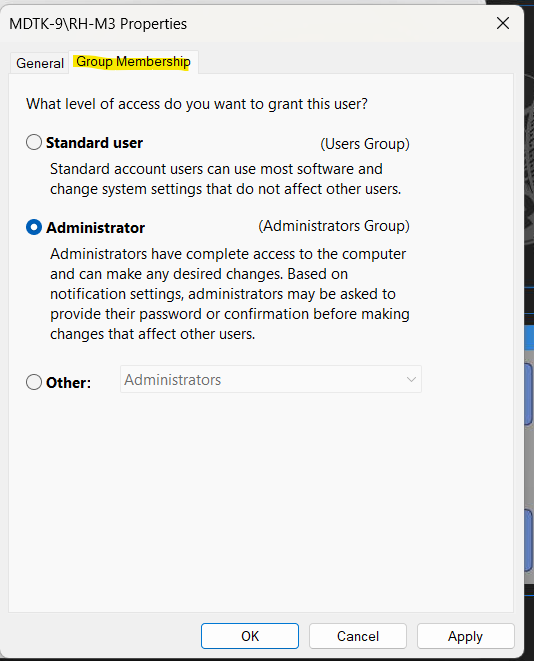
Test test test