
The Town of Falmouth has implemented a method to reset your password should you forget it using the MFA method that you have set up through Duo. This method only works when you are connected to the network at any Town of Falmouth location and are using a town-provided device.
Password Reset from Windows Login Screen
Use this method when you forget your password and cannot log in.
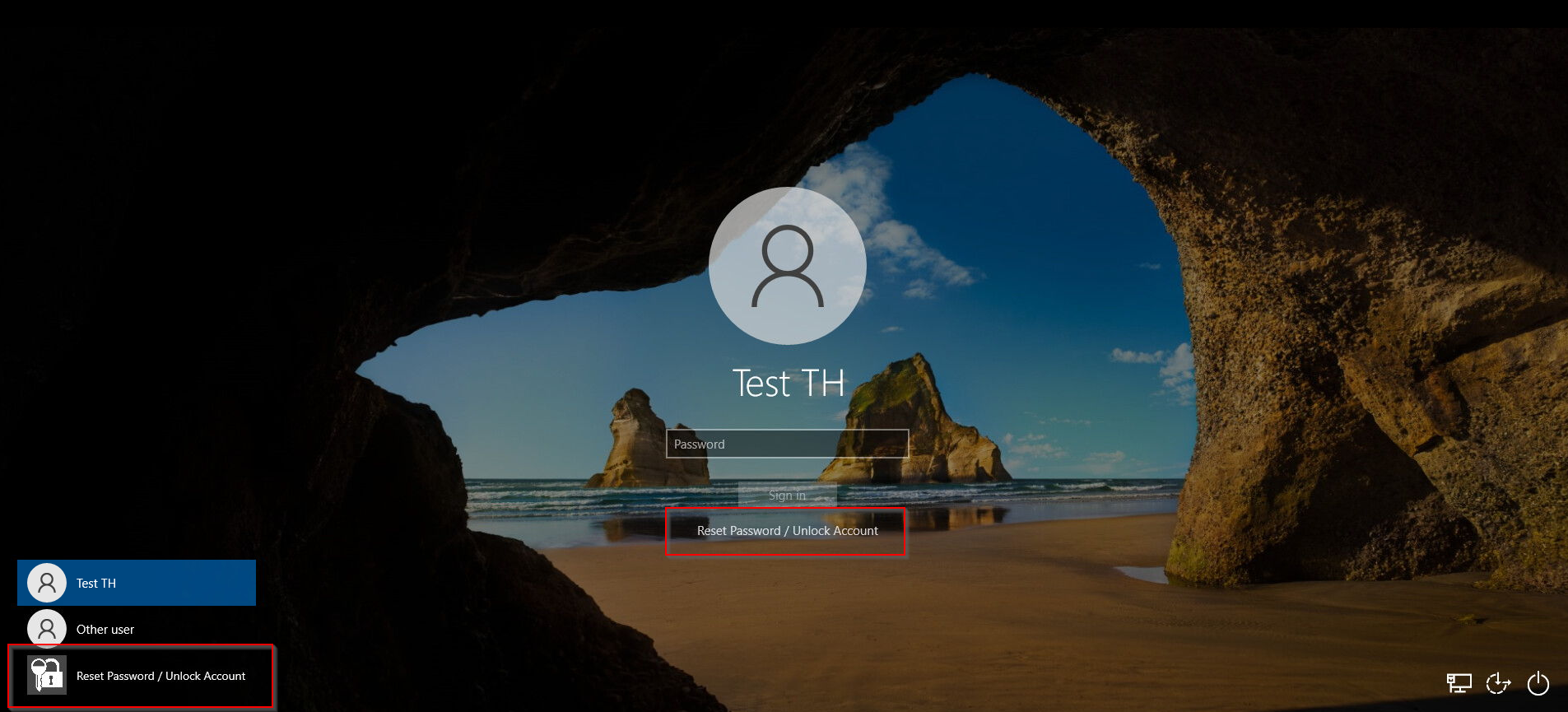
1. From the user login screen, look for the "Reset Password / Unlock Account" buttons under the password box and at the bottom left of the screen:
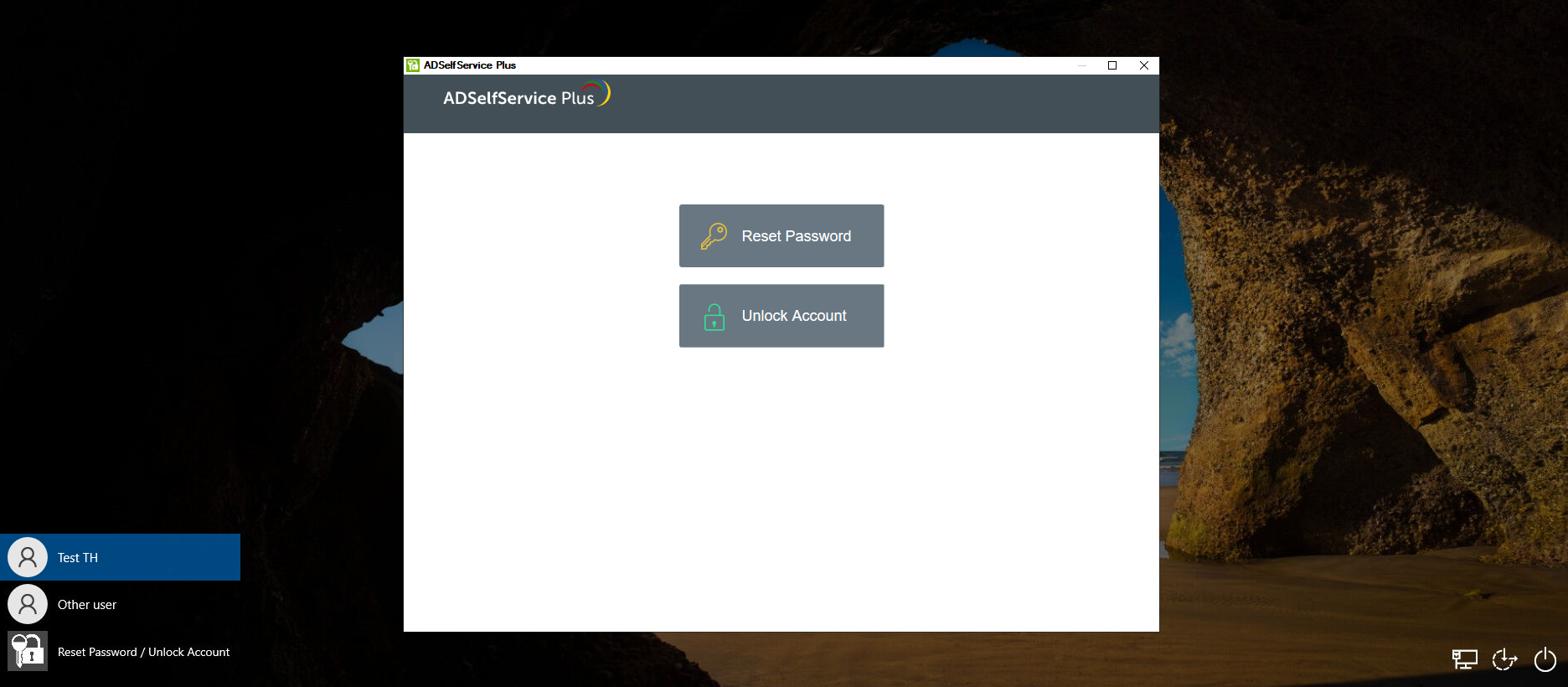
2. Clicking on either button will bring up the below window, select "Reset Password" if you have forgotten your password and "Unlock Account" if your account is locked out.
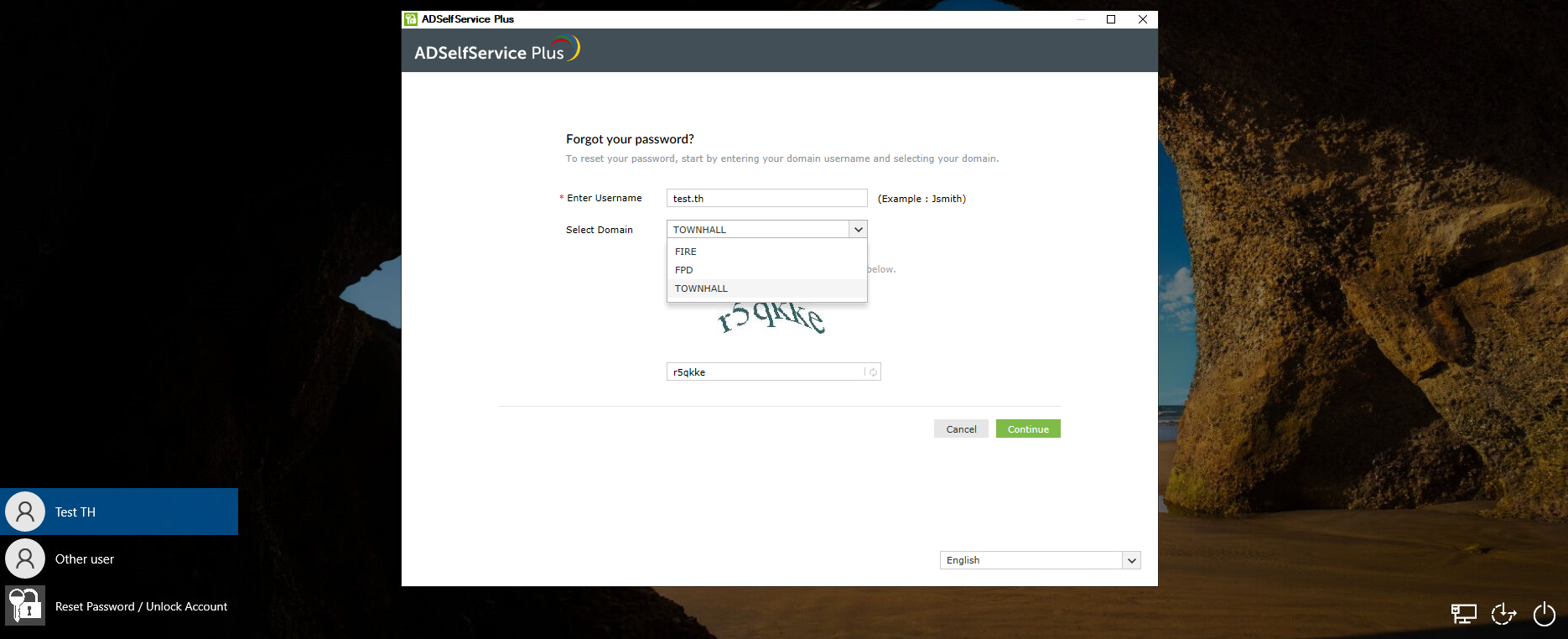
3. Enter your username (typically firstname.lastname). By default the Town Hall domain will be selected, if you are with the Police or Fire Departments then click on the drop-down and choose the appropriate domain. Then enter the displayed CAPTCHA code, and click "Continue".
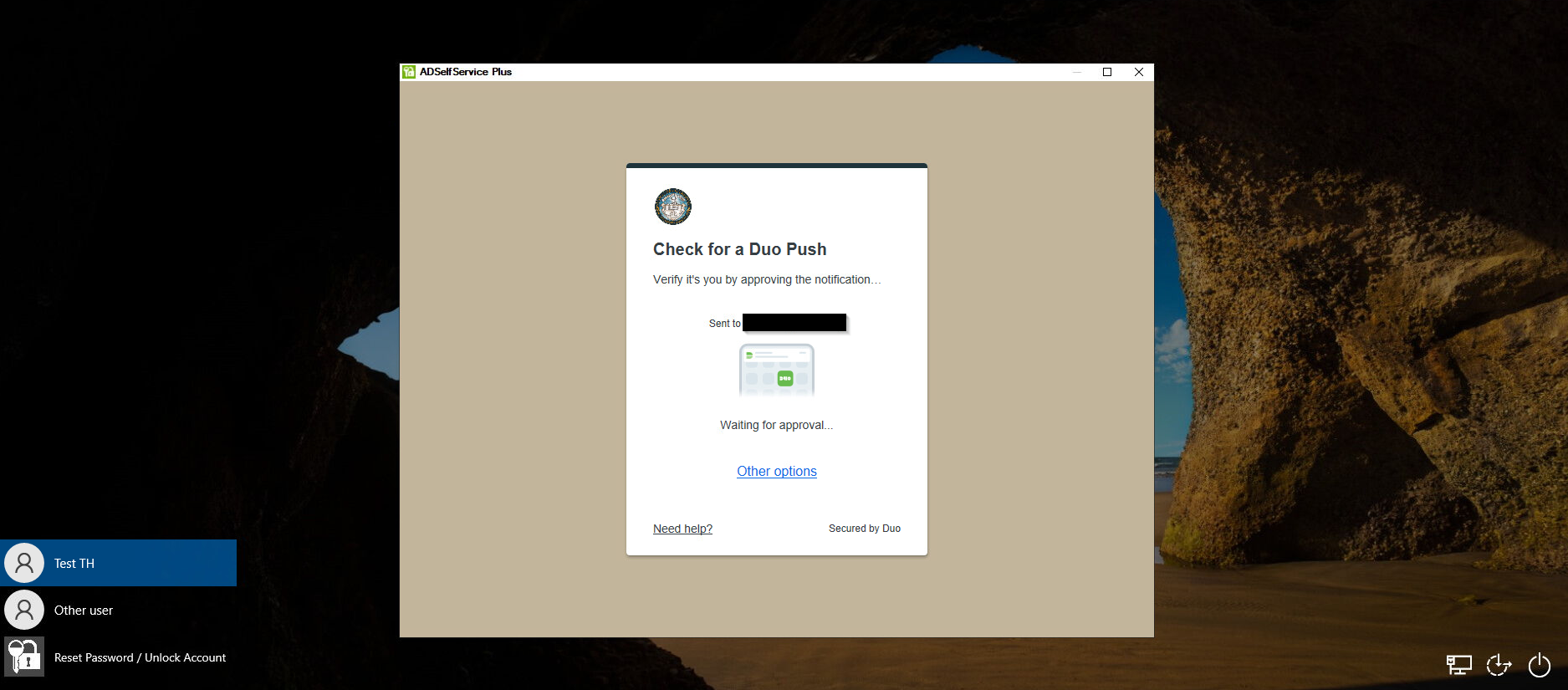
4. If you use the Duo Mobile app, you will be sent a Duo Push which must be approved to reset your password. If you use a Duo Token, you will be asked to enter the 6-digit code similarly to how you normally log into your computer.
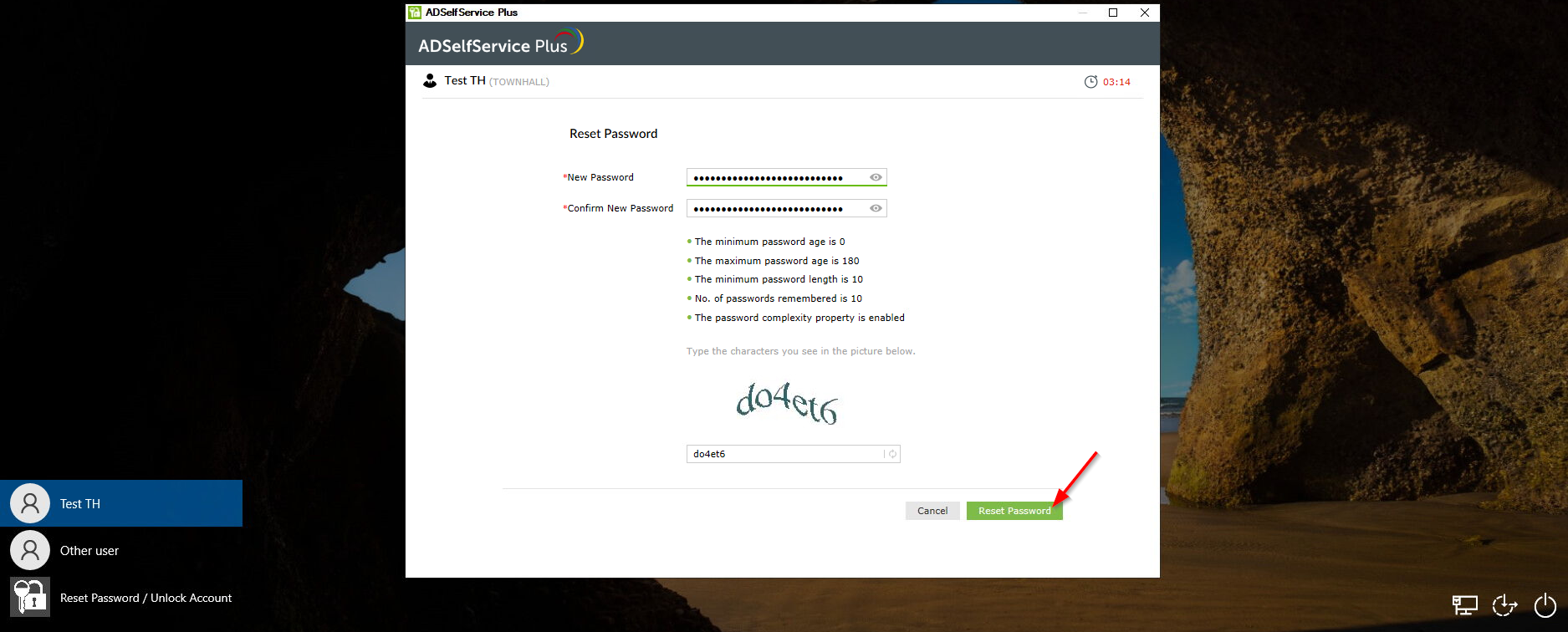
5. After verifying your account with your MFA method enter the new password you would like to use, the requirements that new passwords must meet will be displayed. Enter the displayed CAPTCHA code again, and click "Reset Password".
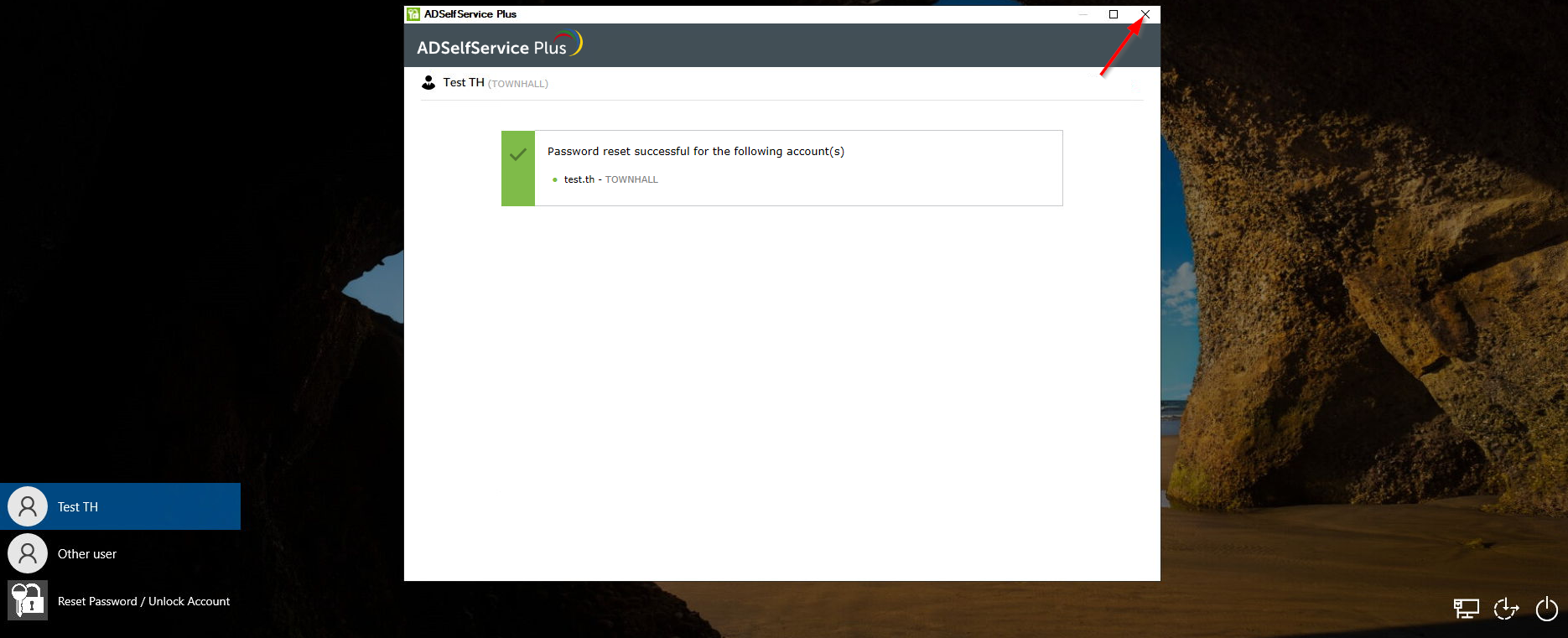
6. You will then receive confirmation that your password has been successfully reset. Click the "X" at the top right of the window to return to the login screen and you may now log in with the new password. If the window keeps re-appearing, make sure your Display Name is selected at the bottom left of the screen.
If you encounter any issues:
- Ensure you're selecting the correct domain for your account
- Make sure your Duo MFA is properly configured and accessible
- Verify that your new password meets all policy requirements
- Contact the IT Help Desk