
This method allows the IT team to dig into an email when you are unable to send it as phishing.
Desktop Outlook:
With the email open, go to the Respond Group. Click on the More Respond Options Button
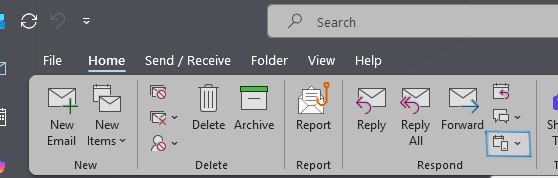
Click forward as attachment. (You can also press CTRL + ALT + F on your keyboard)
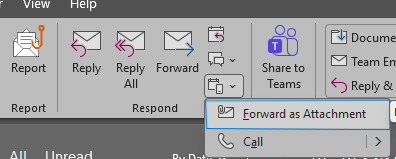 The email message will show as an attachment, like this.
Please send the email to ITHelp@Falmouth.Freshdesk.com.
Outlook Web
If the menu bar is collapsed, click the down arrow at the far right (right before the Copilot button)

With the message open, click on the drop-down below the forward arrow in the Respond group.
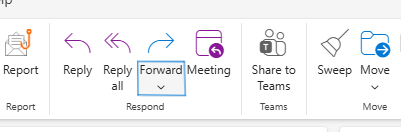
Click forward as attachment.
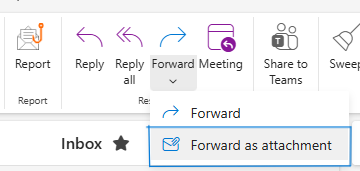
The message should look like this.
If you are still unable to send to ithelp@falmouth.freshdesk.com
Please contact the helpdesk.