
Occasionally, legitimate emails may get stuck in your quarantine, or spam emails might sneak through to your inbox. You can manage your own personal "Allow List" (Safelist) and "Block List" directly through the Barracuda portal.
Option 1: The Quickest Way (Via Your Daily Email)
The easiest way to access your settings is through the Quarantine Summary email you receive when you have blocked messages.
- Open your latest Barracuda Quarantine Summary email.
- Click the link at the top that says, "Manage your Quarantine" (or similar wording like "View your entire message log").
- This will log you directly into your personal Barracuda portal without needing a password.
Option 2: Logging in Directly
If you do not have a recent summary email, you can log in via the web.
- Website: hhttps://us.ess.barracudanetworks.com
- Username: Your full email address. DO NOT USE Sign in with Microsoft
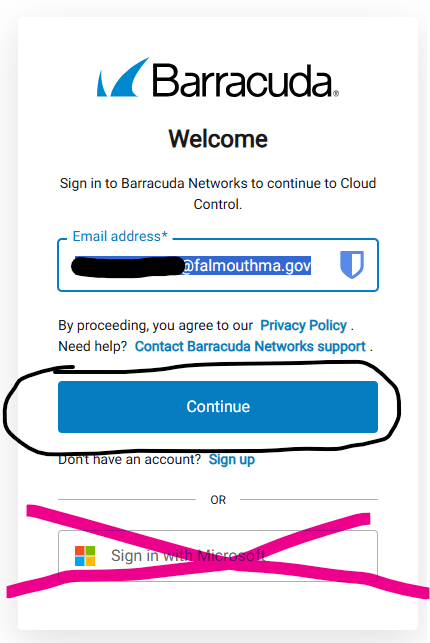
- Password: Your specific Barracuda password. (Note: Since we do not use Single Sign-On yet, this is NOT the same password you use to log into your computer.)
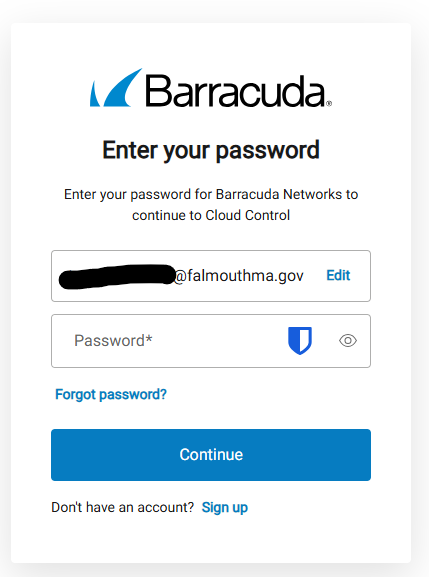
How to Create or Reset Your Password
If you do not know your Barracuda password or are logging in for the first time:
- Go to https://us.ess.barracudanetworks.com
- Enter your Email Address and click Next.
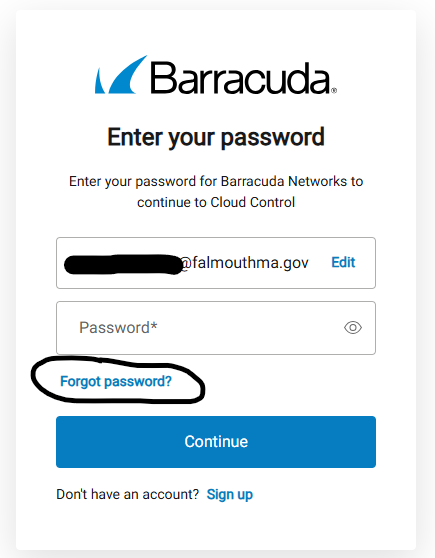
- If prompted for a password you don't know, click the "Forgot your password?" link on the screen.
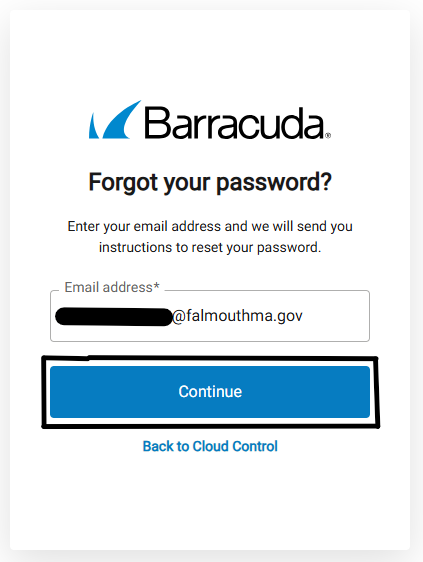
- Confirm your email is correct and click Continue
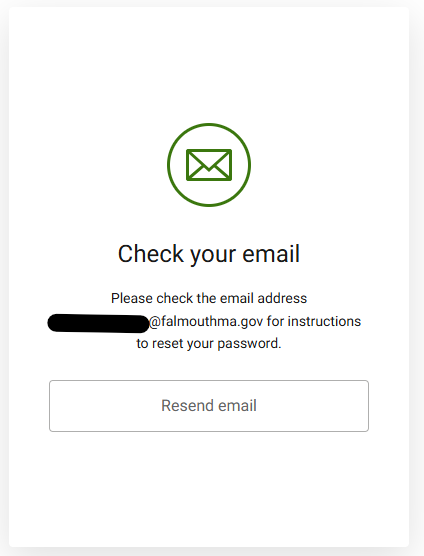
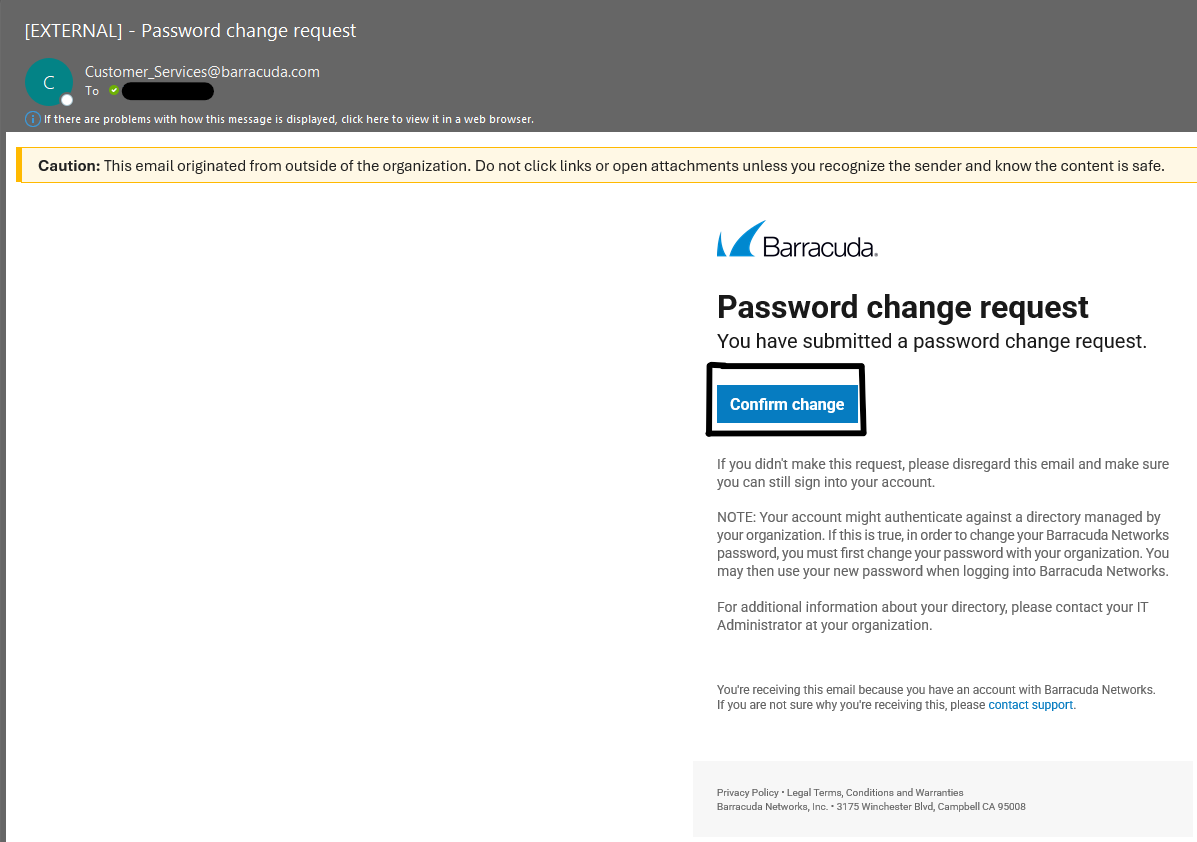
- Check your email inbox. You will receive an email from Barracuda Support (Customer_Services@barracuda.com) with a link. Click the link in that email to create a new password.
How to Allow (Whitelist) or Block (Blacklist) a Sender
If a sender is constantly getting stuck in your quarantine, follow these steps to exempt them
from future scanning:
- Log in to the portal.
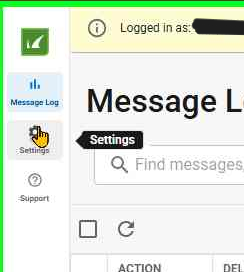
- Click on the Settings tab at the top.
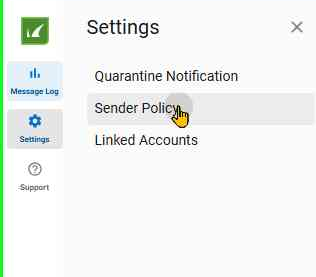
- Click on Sender Policy in the sub-menu.
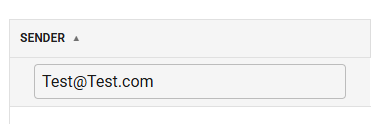
In the box that appears: Email Address / Domain: Enter the email address (e.g.,
sender@example.com) or the entire domain (e.g., example.com).
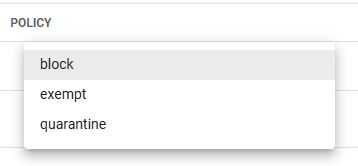
Policy: Select exempt to Allow, block to Block, and quarantine to quaratine.
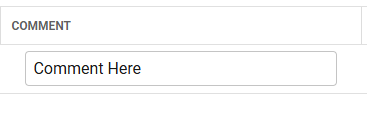
Comment: (Optional) Add a note for yourself.
Click Add.
Tips for Success
- Be Careful with Domains: If you "Exempt" an entire domain (e.g., gmail.com), you will bypass security scanning for everyone with a Gmail address. Only exempt specific email addresses for public domains.
- Check "Message Log": If you are expecting an email and don't see it, click the Message Log tab. You can search for the missing email there. If you see it with a specific "Action" taken (like Quarantined), you can click "Deliver" to send it to your inbox immediately.