
Occasionally, legitimate emails may get stuck in your quarantine. If you recieved an email from Barracuda that has the email you are looking for, you can follow THIS support article. Otherwise, you can use these instructions.
If you need to whitelist or block a sender, please refer to THIS support article.
Option 1: The Quickest Way (Via Your Daily Email)
The easiest way to access your settings is through the Quarantine Summary email you receive when you have blocked messages.
- Open your latest Barracuda Quarantine Summary email.
- Click the link at the top that says, "Manage your Quarantine" (or similar wording like "View your entire message log").
- This will log you directly into your personal Barracuda portal without needing a password.
Option 2: Logging in Directly
If you do not have a recent summary email, you can log in via the web.
- Website: hhttps://us.ess.barracudanetworks.com
- Username: Your full email address. DO NOT USE Sign in with Microsoft
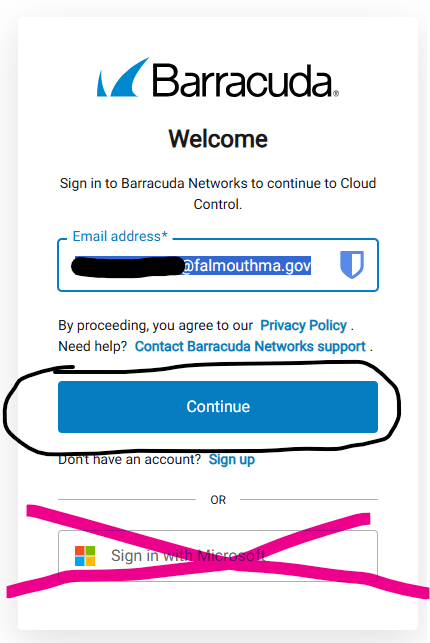
- Password: Your specific Barracuda password. (Note: Since we do not use Single Sign-On yet, this is NOT the same password you use to log into your computer.)
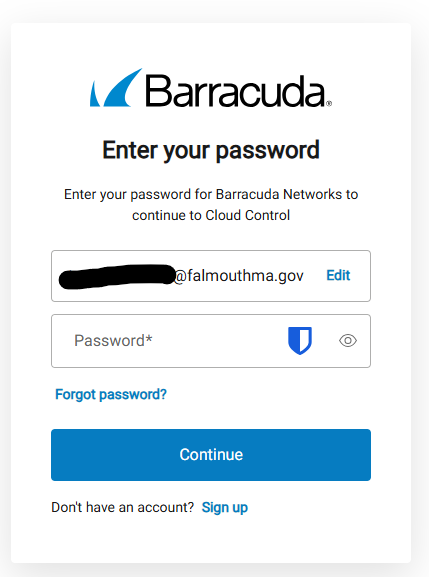
How to Create or Reset Your Password
If you do not know your Barracuda password or are logging in for the first time:
- Go to https://us.ess.barracudanetworks.com
- Enter your Email Address and click Next.
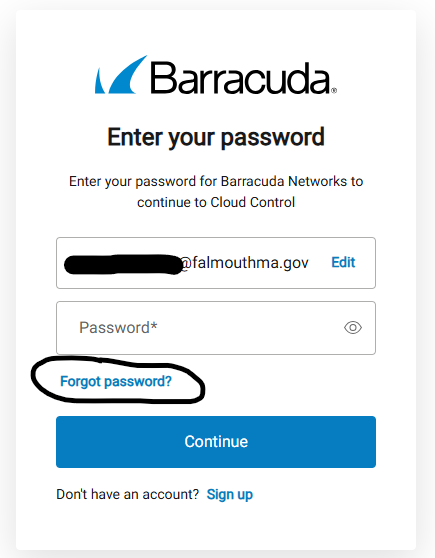
- If prompted for a password you don't know, click the "Forgot your password?" link on the screen.
- Confirm your email is correct and click Continue
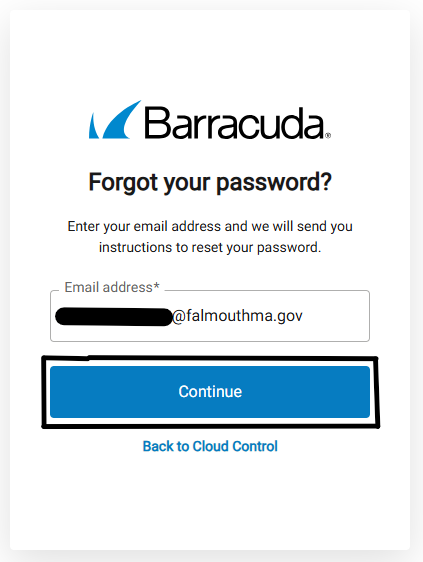
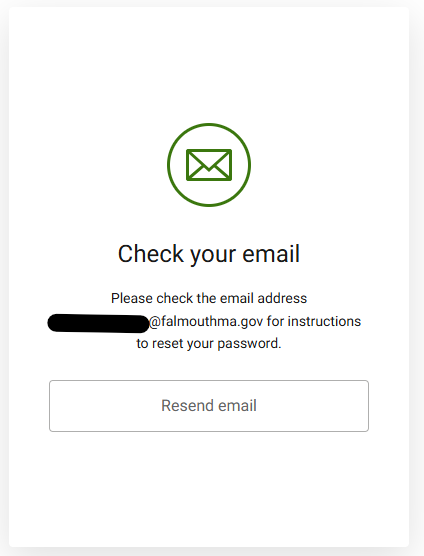
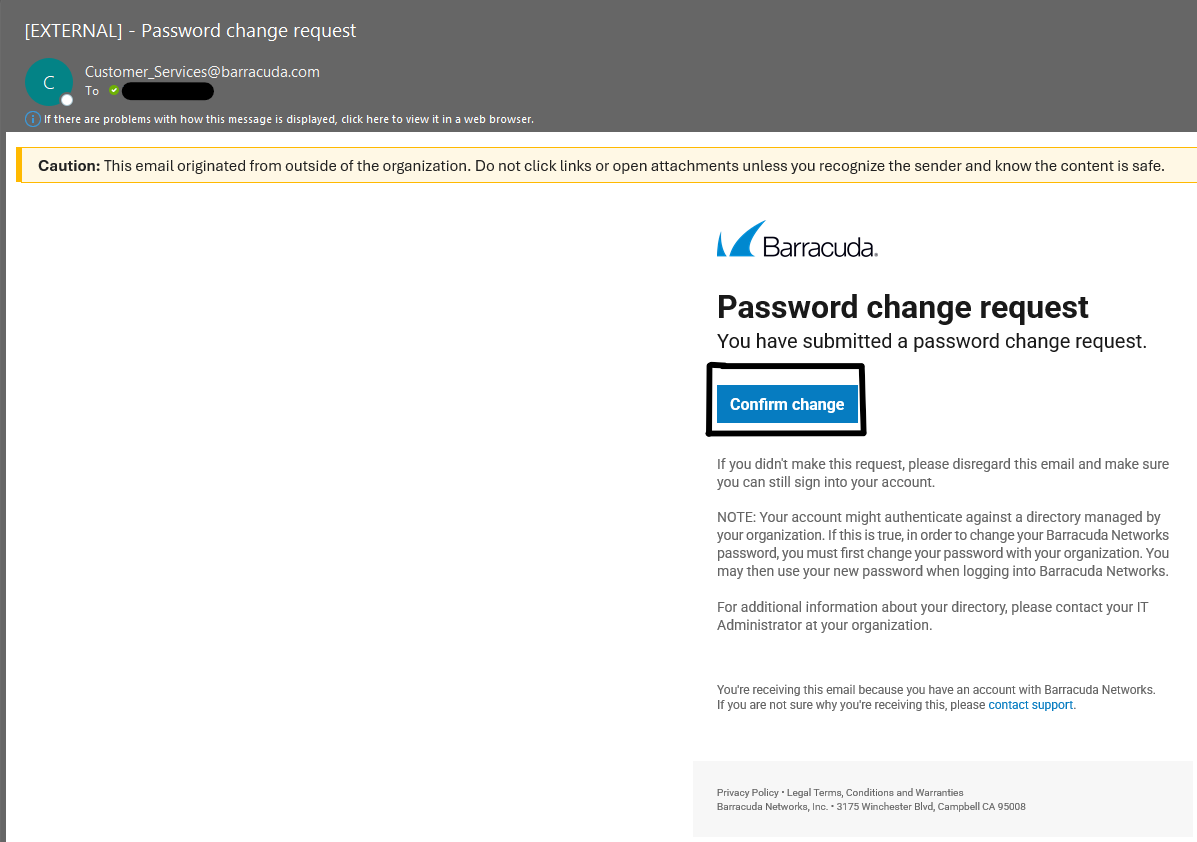
- Check your email inbox. You will receive an email from Barracuda Support (Customer_Services@barracuda.com) with a link. Click the link in that email to create a new password.
View Messages in Your Message Log
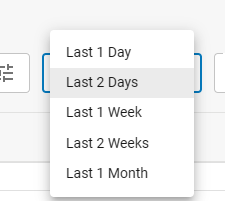
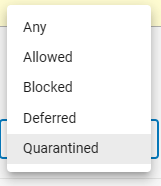
When you have opened the Message Log screen in Barrauda, you will be defaulted to viewing "Quarantined" emails, generally for the last two days.

However, you can adjust the length of time and the action taken.
Date Presets
Action Taken
Once you Have Located The Email
When you have located the email, you have a few options.
- You can deliver the message (only avaiable for certain messages) by clicking the arrow button
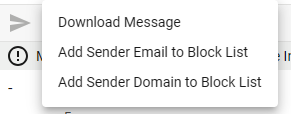
- Click the three dots to show more options.
- Download Message
- Add Sender Email to Block List
- Add Sender Domain to Block List.

If you need to add the send email or domain to the allow list, please refer to THIS support article.